
Photo not showing while booking your medical on e-Samudra
By Dr. Ritez Kumar, MD Internal Medicine | 15 October 2026
When the photo blocks your medical appointment booking
While booking your medical appointment on e-Samudra, you need to fetch your photograph from your seafarer profile. You may click "Fetch from profile" and see: "No profile photograph found in your seafarer documents." This can happen even though a JPG photograph is already stored in your profile.
The fix covered here is to download that existing JPG photograph, convert the same image into a PDF and upload it under "Recent Passport size uploaded by seafarer". After syncing the profile again, return to the medical request and fetch the photograph.
Use these steps for this JPG photo issue. The signature does not need conversion to PDF for this fix.
Step 1: Open your profile and download the photograph
Log in to your e-Samudra account and open Seafarer Profile. Click Sync Profile at the upper right, then scroll to Other Document.
In the list of uploaded documents, find the passport photograph and click its View icon. Download the existing photograph to your device. In the example behind this guide, the downloaded file is a JPG.
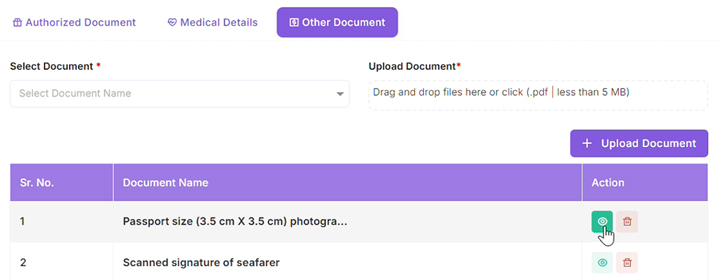
Step 2: Convert the JPG photograph into a PDF
Use a JPG-to-PDF conversion tool to convert the downloaded photograph. Save the PDF where you can find it for the next step.
Open the new PDF once to check that it contains the correct photograph and that the image is clear. The upload field shown in the portal accepts a PDF below 5 MB.
Step 3: Upload under the recent passport photograph category
Return to Other Document in the e-Samudra profile. Open Select Document and choose "Recent Passport size uploaded by seafarer (3.5 cm X 3.5 cm)".
Choose the PDF you have just created and click Upload Document. Check that the upload has completed.
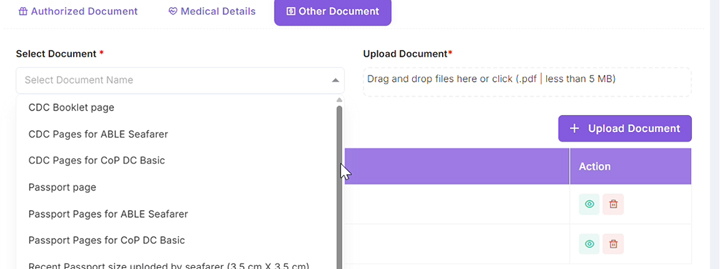
Step 4: Sync again and return to the medical request
Click Sync Profile again. Refresh the tab if needed.
Go to Services, then Medical Certificate, then Medical Certificate Requests. Open your pending medical request.

Step 5: Fetch crop and save
In the photograph section, click Fetch from profile. The photograph should now appear. Follow the portal prompt to crop and save it for this request.
Fetch the existing signature separately, then crop and save it as prompted. The signature does not need to be converted to PDF for this fix.
Complete the self-declaration and select your medical visit date to continue the booking process.
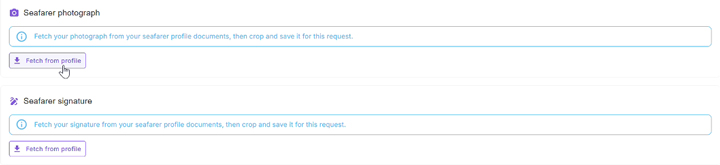
If the photograph still does not appear
Check that you uploaded the PDF under the exact recent passport photograph category, that the file is below 5 MB and that the upload completed. Sync Profile again, refresh and reopen the pending medical request.
If the problem continues, note the exact error and ask the clinic team for help. This guide addresses the JPG photo fetch issue, so another error may need a different solution.
For RPSL and crewing teams
Please share this guide with affected candidates before their medical visit. Ask them to check that both the photograph and signature are saved in the medical request and that their self-declaration and visit date are complete.
DG Shipping medicals at Global Wellness Centre
Global Wellness Centre is a DG Shipping-approved Medical Examination Centre in Dabri-Palam, New Delhi. Medical examinations are led by Dr. Ritez Kumar, MD Internal Medicine.
For help with your medical booking, WhatsApp +91 92059 00564 or email frontdesk@globalwellnesscentre.org.
e-Samudra approval: MP-0000142-2026. Legacy approval reference: ND/DEL/61/2024.